How to Automate Your Workflow with Bash Scripts: A Beginner’s Guide

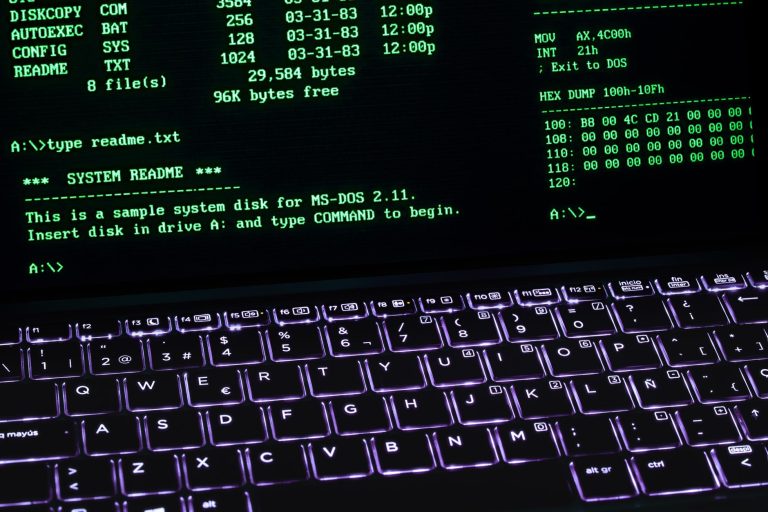
Photo by Markus Spiske on Pexels
Why Learn Bash Scripting?
If you’ve ever found yourself typing the same commands over and over, bash scripting is your shortcut to freedom. A bash script is simply a text file containing a series of commands — run it once, and it executes everything automatically.
Developers use bash scripts to automate backups, batch-rename files, deploy websites, and manage servers. The best part? It’s completely free and available on every Linux and macOS system.
Your First Bash Script
Create a new file called hello.sh:
#!/bin/bash
echo "Hello, World!"
echo "Today is: $(date)"
echo "Current directory: $(pwd)"
Save the file, then make it executable and run it:
chmod +x hello.sh
./hello.sh
Essential Commands for Everyday Scripts
Variables
#!/bin/bash
name="John"
echo "Hello, $name!"
Loops — Do Things Repeatedly
#!/bin/bash
for file in *.txt; do
    echo "Processing $file..."
    wc -l "$file"
done
Conditionals — Make Decisions
#!/bin/bash
if [ -f "backup.zip" ]; then
    echo "Backup exists. Skipping..."
else
    echo "Creating backup..."
    zip -r backup.zip myfolder/
fi
Practical Script Ideas for Beginners
- File Organizer: Sort files into folders by extension or date
- System Cleaner: Delete temporary files and logs older than 30 days
- Backup Script: Compress a folder with a timestamp and copy it to a backup drive
- Batch Renamer: Rename all files in a folder following a pattern
Tips for Writing Safe Scripts
- Always test on sample data first — use a test folder
- Add
echostatements to show progress - Use
set -eat the top to stop on first error - Quote your variables (
"$file") to handle spaces in filenames - Keep backups before running scripts that modify files
Bash scripting is one of the most practical skills you can learn. Start with small automation tasks, and soon you’ll wonder how you ever worked without it.